Three Cheap Fixes for a Slow Home Page
An Audit Before Anyone Else Saw the Page
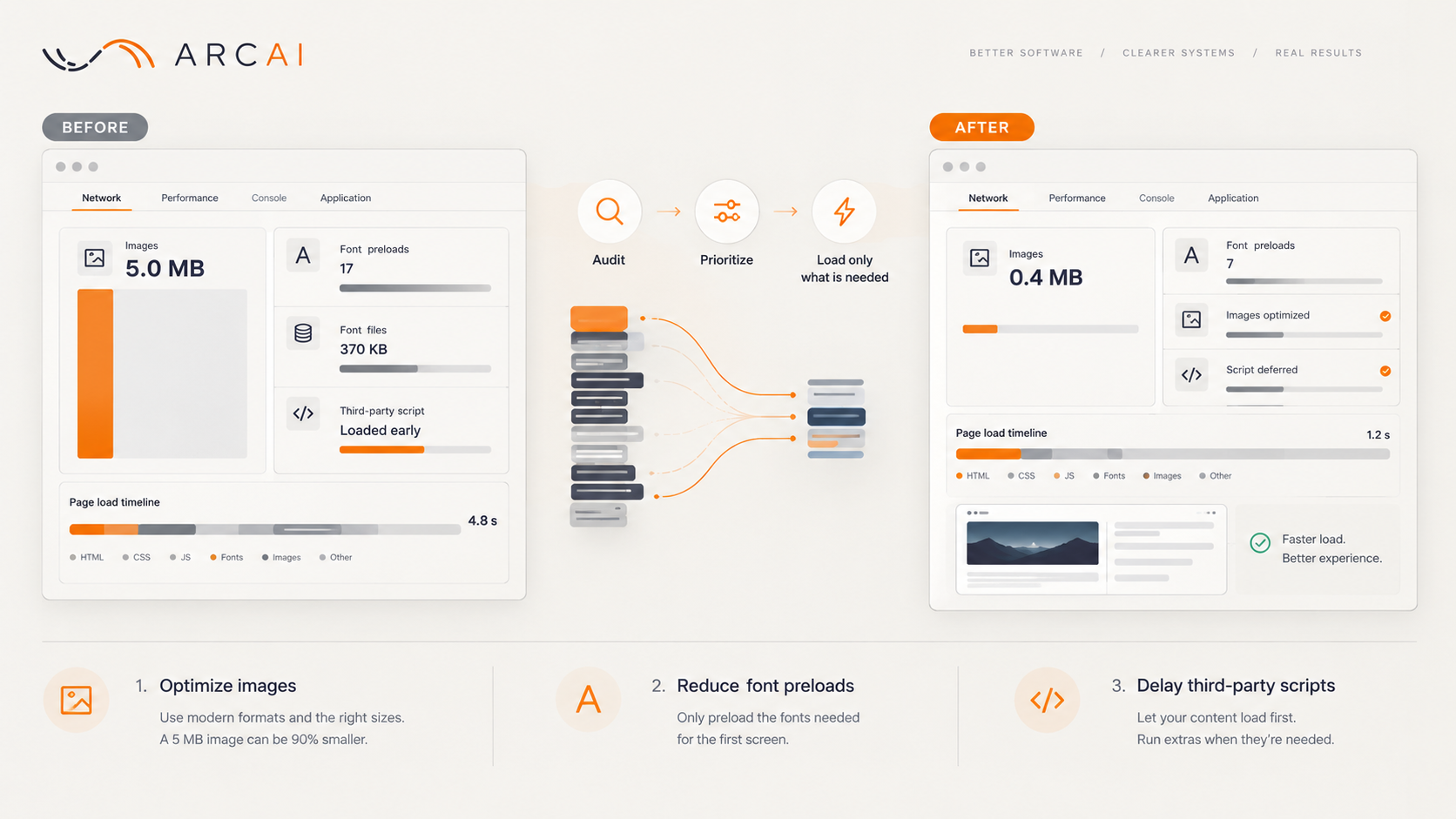
Arc AI audits its own home page the same way it audits anyone else's. Before launch, that audit found almost 5 MB of decorative images shown at postage-stamp size, 17 font files queued before a single word rendered, and a Google script loading ahead of the page's own title tag. No visitor ever saw the slow version. Here's what it found, and how to check your own site in about ten minutes.
Ten Minutes With the Network Panel
Open any page in Chrome or Edge, right-click, choose Inspect, open the Network tab and reload. No plugin, no login needed.
Sort by size, largest first. Nothing in that first screen should be much over 200 KB without a reason, and a 1.4 MB background photo shown at postage-stamp size isn't one. Click an image's request to see its real file width, then inspect the image on the page to see its display width. A file six times wider than its display size means the browser downloaded six times more picture than anyone can see; roughly twice the display width is normally plenty. Lighthouse, in the same developer tools, gives a second opinion in one click.
Images Built for a Poster, Shown as a Stamp
Eight artwork images did all the heavy lifting here, each used twice: once in a small ring, once in a wider carousel. Every file was a PNG around 1,000 to 1,100 pixels wide, some as heavy as 1.4 MB, yet displayed at 184 pixels in the ring and about 480 in the carousel. Together, about 5 MB of PNG doing the work of images a fraction of that size.
Because they were CSS backgrounds, the browser couldn't serve a smaller file to a smaller screen. The fix: new WebP versions at roughly twice the display size, 368 KB altogether, with the original PNGs pulled from the live site. Nearly 5 MB became well under half a megabyte, more than 90% less, for pictures that look identical.
For photos visitors upload, the build now generates WebP copies at 480, 960, 1,440 and 1,920 pixels wide and serves whichever fits the screen. The original is kept too, since social share previews still expect a JPEG or PNG.
Preloading Everything Is Not Faster
A preload tells the browser to fetch something immediately, useful only when that's true. Here, 17 font files, about 370 KB, were fighting the hero image for bandwidth before the page painted a word, most of them for text further down the page or off-screen entirely.
Cutting the list from 17 files to 7 removed nothing from the site. It just let the browser fetch the rest when the page actually needed them.
Third-Party Scripts Wait Their Turn
On the audited version, Google's reCAPTCHA script loaded on every visit, ahead of the page's own title and meta description, whether or not anyone reached the contact form it protects. The fix didn't remove the script, it moved it: the SEO tags load first, and the anti-spam check only starts once the form scrolls into view.
A Checklist for Your Own Site
- Sort the network panel by size. Anything over 200 KB in the first screen needs a reason.
- Compare each image's file width with its displayed width. Serve about twice the size, not six times.
- Count the preloads. Keep only the fonts the first screen actually uses.
- Check that third-party scripts load only where and when needed.
- Confirm the title and description tags load before any script does.
Three Small Decisions, Not a Redesign
Five megabytes of PNG, ten unnecessary preloads and a badly ordered script: none of it needed a redesign or a new framework. It needed someone to open the network panel and make three small decisions about file size, loading order and priority. Slow is a symptom, not a diagnosis.