JPEG XL now works in Chrome, Firefox and Safari. Should your website switch?
Don't switch. Microsoft Edge can't show JPEG XL images and Google Search doesn't list the format. Test it on your own photos, and add it beside your current images only if it pays.
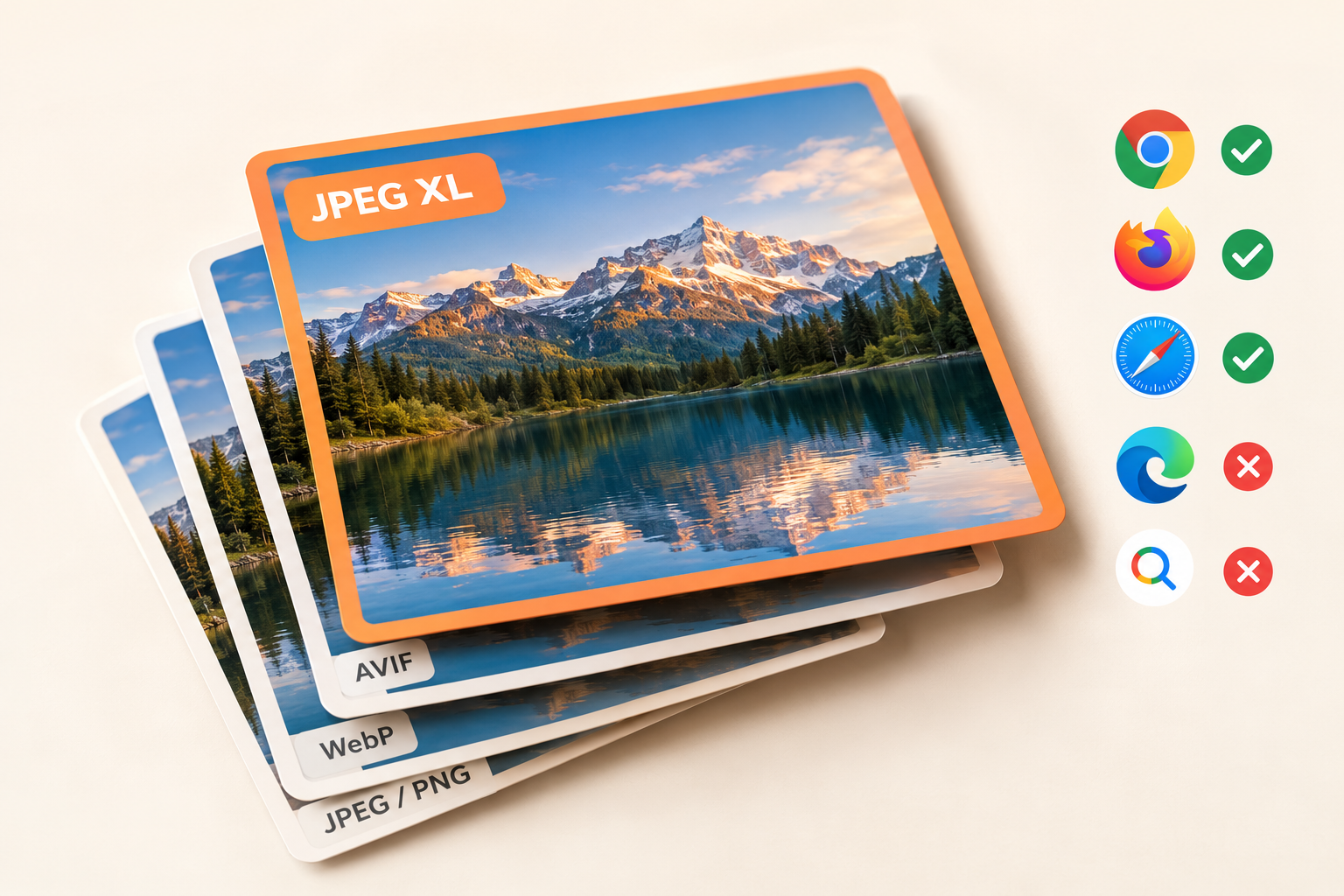
Don't switch. If you use JPEG XL, add it beside the images you already have, and keep a JPEG, PNG, WebP or AVIF version for every browser that can't show it. As of October 16, 2026, Chrome, Firefox and Safari can show JPEG XL images, but Microsoft Edge can't. An Edge visitor would see a broken image where a JPEG XL-only picture should be. Google Search also doesn't list JPEG XL among the image formats it supports, so you can't count on Google's image results to include a JPEG XL-only picture.
The browser makers report large savings against old JPEG files. Against WebP and AVIF, two newer formats that every major browser already shows, the gain is unclear. Below: what changed in October 2026, what "limited availability" means, what JPEG XL can and can't do for your page speed, and five steps to test it and add it safely.
What changed for JPEG XL in October 2026?
In October 2026, Chrome and Firefox started to show JPEG XL images. Safari has shown them since 2023. JPEG XL is an image format, standardized as ISO/IEC 18181. MDN, Mozilla's reference site for web developers, lists its features in its image format guide: lossy and lossless compression, transparency, animation and high dynamic range (HDR) for brighter highlights. Lossy compression drops detail the eye is unlikely to miss, to make the file smaller. Lossless compression keeps every pixel. The files end in .jxl.
Here is where each browser stood on October 16, 2026:
- Chrome: Google announced on October 6, 2026 that Chrome 155 decodes JPEG XL images. Decoding means the browser can open the file and show it. Chrome Platform Status lists version 155 on desktop and Android.
- Firefox: Firefox 158, released on October 13, 2026, "now supports the JPEG XL image format." Web Platform Status, a site that tracks browser support for each web feature, lists the same version for Firefox on Android.
- Safari: Apple added it in Safari 17.0 in September 2023, for iPhones and iPads on iOS 17 or iPadOS 17 and later, and for Macs on macOS Monterey and later. According to caniuse.com, a site that tracks browser support, Safari shows only still JPEG XL images, not animated ones. It also doesn't show a JPEG XL image gradually while the file downloads.
- Other browsers on iPhone and iPad: Apple's App Store rules say that apps that browse the web must use WebKit, Safari's engine, unless the app has a special entitlement in the EU or Japan. Outside those cases, Chrome on an iPhone follows Safari's support.
- Microsoft Edge: not yet. Edge is built on Chromium, the same open-source code as Chrome. Even so, MDN's browser compatibility data, the public tables behind MDN's support charts, changed Edge to "not supported" on October 13, 2026, with the note that support "is in Chromium, but currently disabled in Edge." Microsoft's web platform release notes for Edge 155 first said that Edge supports JPEG XL, but Microsoft removed that entry on October 9, 2026. Older copies and news reports may still quote it. We found no statement from Microsoft on when Edge will turn it on.
- Samsung Internet and Opera: Samsung Internet doesn't show JPEG XL, and Opera shows it only after a user turns on a hidden setting, according to caniuse.com.
Browser support changes quickly. The dates above come from each browser maker's own notes and from the compatibility data, as they stood on October 16, 2026.
What does "limited availability" mean for your site?
It means at least one of the main browsers can't show JPEG XL yet. Baseline is a summary of browser support that MDN shows on its reference pages. It checks seven browsers: Chrome, Edge, Firefox and Safari on computers, and Chrome, Firefox and Safari on phones. MDN's Baseline glossary gives three levels:
- Limited availability: "not yet available in all browsers."
- Newly available: works in at least the latest version of each of the seven browsers, "but may not work with older browsers and devices."
- Widely available: has worked in all seven for at least 2.5 years.
Web Platform Status lists JPEG XL as limited, with support in Chrome 155, Firefox 158 and Safari 17, and none in Edge. For comparison, WebP has been widely available since March 2023, and AVIF since July 2026.
If Edge turns it on while the other browsers keep their support, JPEG XL would become newly available, which still covers only the latest browser versions. MDN warns that Baseline may not tell you whether a feature works with older devices and browser releases. For example, an iPhone on a system older than iOS 17 won't show a JPEG XL file at all. How many of your visitors that affects depends on your site, so your own analytics is the number that counts (step 1 below).
Will JPEG XL make your website faster?
Sometimes, a little. The browser makers report large savings against old JPEG files. Against AVIF or WebP, the gain is smaller and not certain, and image download time is often not what slows a page down.
The headline figures compare JPEG XL with JPEG. Google's Chrome team says JPEG XL offers "30-50% better compression than JPEG". Apple said in 2023 that you can recompress existing JPEG files into JPEG XL with no loss of quality, making them about 20% smaller on average. It added that a file made from the original image can be up to 60% smaller than a JPEG. Neither post explains how these figures were measured.
Against newer formats, the picture is mixed:
- Chrome's team recommends trying both AVIF and JPEG XL and expects JPEG XL to help most with "high-fidelity or lossless compression, especially of photographic images." High-fidelity means very close to the original, with little visible loss.
- Mozilla's Firefox 158 note says JPEG XL "generally has better compression than WebP, JPEG, PNG, and GIF." It doesn't compare JPEG XL with AVIF.
- In Mozilla's public discussion before Firefox turned it on, Jake Archibald, who works on Firefox, wrote that most developers seem to assume lossy JPEG XL will produce smaller files and decode faster than AVIF at web quality, "when neither seems to be true." Web quality here means the lower quality settings sites usually choose to keep photos small. That is one person's view, not a published study.
A smaller file isn't always a faster image, because the browser has to decode every image before it can show it. In the same discussion, another participant, Sergey Davidoff, tested one lossless image. JPEG XL took 15 to 20 times longer to decode than WebP in its lossless mode, depending on the hardware, for a file about 10% smaller. One test image doesn't make a rule. It does show why you should measure on your own images before you change anything.
Then there is the question of whether images slow your page down at all. Largest Contentful Paint (LCP) is one of Google's three Core Web Vitals, the measures of user experience that Google says should be measured by all site owners. LCP measures the time from when the user initiates loading the page until the largest image or text block appears on screen. Google calls it good when the LCP is 2.5 seconds or less for at least 75% of page visits. Google's web.dev guide splits that wait into four parts:
- The server's first response.
- The delay before the main image starts to load.
- The image's download.
- The delay before the browser draws it.
A smaller image file shortens only the third part. The guide warns that this part "tends not to be a significant bottleneck for most sites". It also shows a page where a smaller image didn't improve LCP at all, because the saved time just moved to the fourth part. If your LCP is already good, or the download part is short, a new image format has little to fix. Step 5 below shows how to see the four parts for your own page.
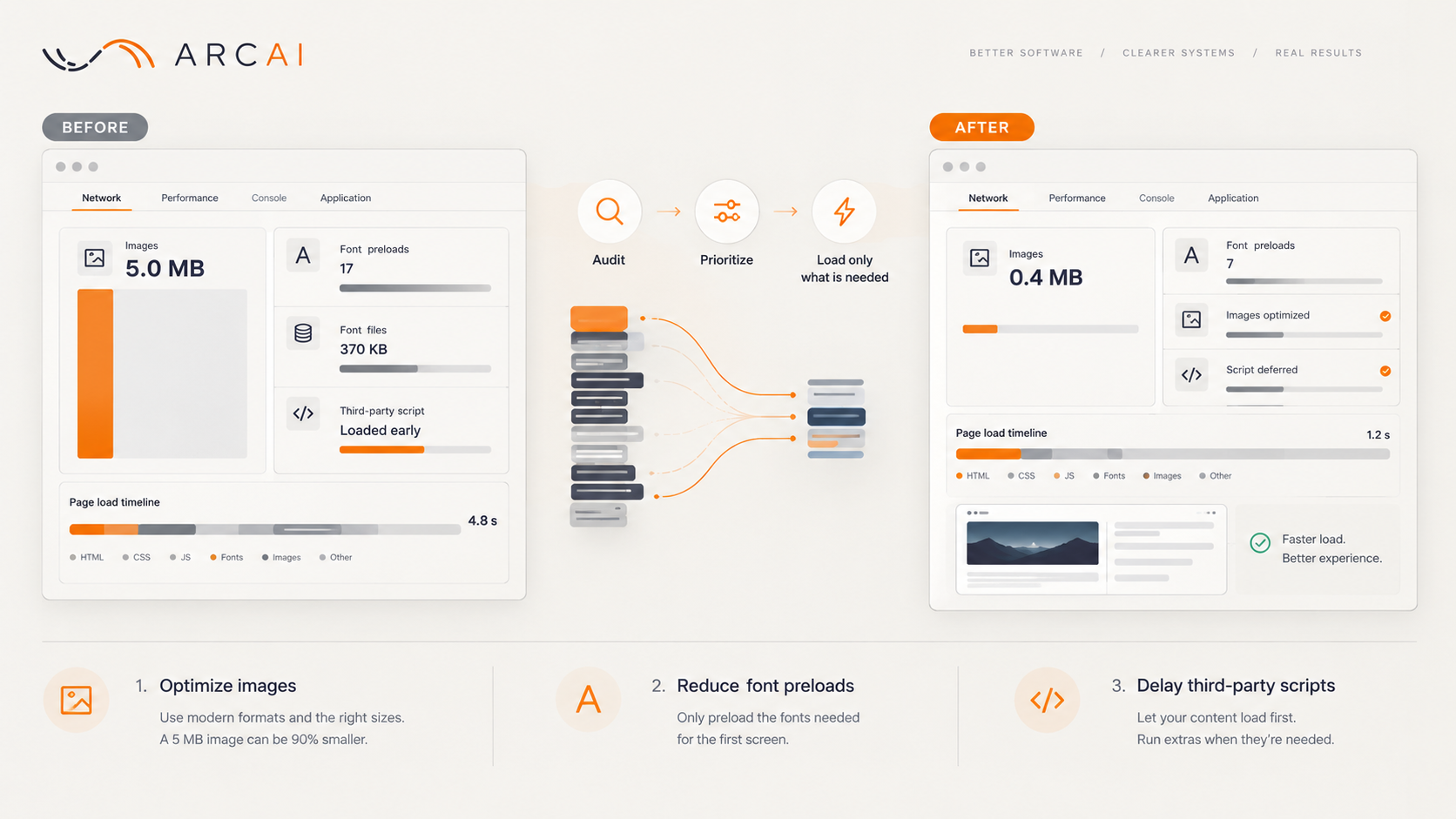
On Arc AI's own site, the big image saving needed no new format. In an audit of our home page before launch, we found about 5 MB of PNG artwork shown far smaller than its files. The fix was WebP copies at about twice the size the images appear on screen, so they stay sharp on high-resolution screens: 368 KB in total. We reported file sizes for that fix, not LCP. WebP works in every current browser. If your images are much larger than they appear, start there.
When is JPEG XL worth adding?
It is worth testing when your site depends on large, detailed photos where quality matters, for example a photographer's portfolio, product close-ups, property listings or artwork. These cases match where Chrome's team expects JPEG XL to help most: high-fidelity photos.
Two other cases:
- A large library of existing JPEG photos. JPEG XL can recompress a JPEG with no loss, and the original JPEG file can be rebuilt from it. The smaller copies keep the same quality, so nobody has to check each photo again.
- Large photos on slow connections. Chrome's team also names "fine-grained progressive decoding" as a strength. A browser that supports it can show a rough version of the image early and sharpen it as more data arrives. Safari doesn't do this for JPEG XL yet.
If an animation must also play in Safari, JPEG XL can't do that yet. If your site already serves well-sized AVIF or WebP images, the gain is uncertain. Test first, because each extra format means more files to make and store.
How do you test and add JPEG XL without breaking images?
Add JPEG XL as an extra version of each image, never as the only one, and only after a test on your own photos. Five steps:
- Check your visitors' browsers. In Google Analytics 4, open Reports, then Tech, then Tech details. The Browser column shows how many visitors use Edge, Samsung Internet or Opera. The report also shows the operating system version, which tells you how many iPhone and iPad visitors are on iOS 17 or later. The report shows browser names, not versions, and Chrome 155 and Firefox 158 only came out in October 2026, so treat your count as an upper limit. If you need an exact figure, your developer can record whether each visitor's browser shows JPEG XL, as long as your privacy policy covers it. Only visitors on current Chrome, Firefox or Safari can get JPEG XL. If most of your visitors are outside that group, JPEG XL would help few of them, and you can stop here.
- Keep your current images. Your JPEG, PNG, WebP or AVIF files stay as the version that every browser and Google Search can use. Google Search lists the image formats it supports: BMP, GIF, JPEG, PNG, WebP, SVG and AVIF. JPEG XL isn't on that list, which Google last updated in March 2026. Google doesn't promise to index a picture that exists only as JPEG XL, so don't rely on it.
- Test on your own photos. Ask your developer to save ten typical photos as both JPEG XL and AVIF. Chrome's team recommends trying both formats. If your site still serves plain JPEG, compare against AVIF anyway: AVIF already works in every major browser, so it is the safer first step. Compare each pair side by side at the size it appears on your site, and adjust the quality settings until the two look the same. Then compare the file sizes. Agree before the test how much smaller JPEG XL must be to pay for the extra files and your developer's time.
- Add JPEG XL first, with a fallback. On a web page, the HTML
<picture>element holds several versions of one image. Apple's notes describe how to provide JPEG XL files to browsers that have support and a fallback format to browsers that don't. Google recommends that you always keep a plain fallback image address, because some browsers and crawlers don't read the other versions. Crawlers are the programs search engines use to read pages. The code is at the end of this article. - Measure, and keep JPEG XL only if it pays. Compare your LCP before and after the change. PageSpeed Insights, Google's free page-speed test, shows real-user LCP data in its top section when Google has enough visits to your page. That data covers the previous 28 days, so compare again about four weeks after the change. Its lower section runs one test load and has a "Largest Contentful Paint element" diagnostic that breaks it into the four parts. If LCP doesn't improve, or the files aren't smaller by the amount you agreed, remove JPEG XL and keep what you have. Also ask your developer, or the company behind your content management system or website builder, whether it can make JPEG XL copies automatically. If it can't yet, you aren't missing much, because the gain over AVIF and WebP is unclear.
What does Arc AI's own site use?
This site serves no JPEG XL images today. Blog photos are uploaded as JPEG, PNG or WebP. The site keeps the original upload as the plain image, and it offers WebP copies at four widths, from 480 to 1,920 pixels, so each screen downloads a size that fits. The home page artwork is WebP only, which every current browser shows.
For developers: put JPEG XL first inside <picture>, and keep a widely supported format in the <img>:
<picture>
    <source type="image/jxl" srcset="shop-front.jxl">
    <source type="image/avif" srcset="shop-front.avif">
    <img src="shop-front.jpg" alt="The shop front at opening time" width="1200" height="800">
</picture>
The browser uses the first <source> whose type it can decode. Edge and any other browser without JPEG XL get the AVIF file, and a browser too old for AVIF gets the JPEG. A crawler that ignores <picture> reads the JPEG in src, as Google's image guide expects. On a real page, give each <source> and the <img> several widths in srcset, with sizes, so phones don't download desktop-sized files. Serve .jxl files with the MIME type image/jxl. If you check MDN, its format guide, last edited on October 8, still lists "Edge 155". Its compatibility data, corrected on October 13 after a side-by-side test, says Edge doesn't support JPEG XL. Prefer lossy JPEG XL for photos, and measure decode time before you use lossless JPEG XL, given the decode times reported in Mozilla's discussion.
If you're not sure whether images are what slows your site down, tell us what you have. You will hear from a person within one business day.